Seedance 2.5 Prompt Guide

Master the art of prompting to create stunning AI-generated videos. This guide covers prompt techniques, multimodal references, and real-world examples for Seedance 2.5 (also applicable to Seedance 2.0).

ModelSeedance 2.5
Max DurationUp to 30s Single Shot
MultimodalImage / Video / Audio
Native AudioSync Speech & SFX

01 General Tips

1.1 Basic Prompt Formula

Seedance 2.5 deeply follows natural language logic, so you can flexibly combine the following elements based on your needs.

Prompt Formula
[Subject] + [Motion] + [Environment] + [Aesthetics] + [Camera] + [Audio]

Subject

required

The logical foundation of your prompt — clearly define WHO is performing WHAT action.

Motion

required

The logical foundation of your prompt — clearly define WHO is performing WHAT action.

Environment

optional

Describe the spatial background, lighting details, or a specific visual style to set the overall tone.

Aesthetics

optional

Describe the spatial background, lighting details, or a specific visual style to set the overall tone.

Camera

optional

Use camera choreography or ambient sound effects for immersive audiovisual output.

Audio

optional

Use camera choreography or ambient sound effects for immersive audiovisual output.

1.2 Multimodal Reference Control

Beyond text descriptions, you can also "feed" reference materials to lock in the ideal standard for your visuals. Seedance 2.5 supports deep referencing of images, audio, and video.

Clearly Specify References

In your prompt, clearly specify what to reference — e.g., "use the composition from Image 1" or "follow the action from Video 2".

Precise Reproduction

The model automatically extracts core features from reference objects and combines them with your text description, ensuring high fidelity and creativity in the output.

02 Text in Video

2.1 Slogan / Title Text

Seedance 2.5 can automatically match appropriate text styles based on context. For stricter text appearance requirements, refer to section 3.2 Multi-image Reference > Logo Reference.

Prompt Formula
[Text Content] + [Appearance Timing] + [Position] + [Appearance Method], [Text Style (color, font)]

Animated Slogan with Product

Output
Reference Input
Image 1
View High-Res Reference
Image 1
Prompt
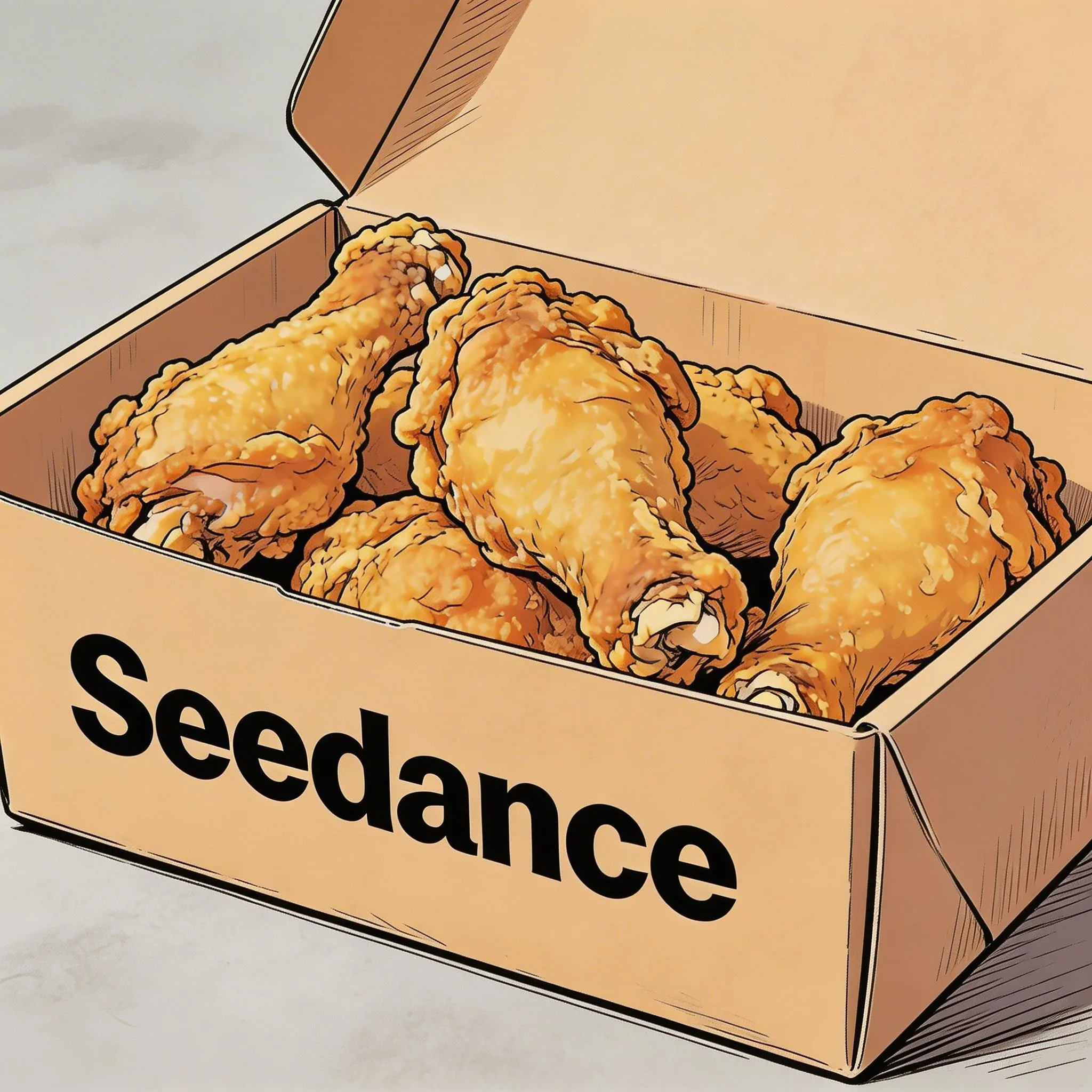
Hand-drawn comic style, three people sitting together eating the fried chicken from Image 1, the atmosphere is friendly and joyful, then the scene gradually blurs, and the text "Joy is in Seedance" appears in the center of the screen.

2.2 Subtitles

Prompt Formula
Subtitles appear at the bottom of the screen with the content "...", synchronized with the audio rhythm.

Narrated Landscape with Subtitles

Output
Reference Input
Image 1
View High-Res Reference
Image 1
Prompt
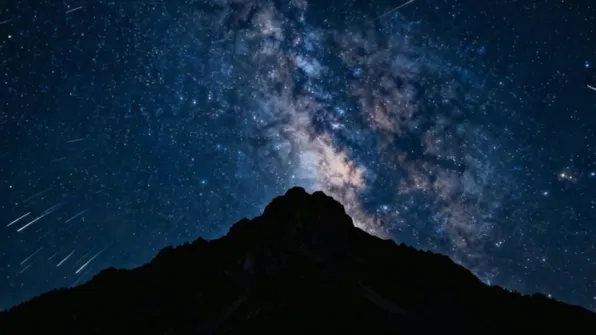
Generate a video with voiceover narration. A deep, calm male voice says: "In the grand universe, our world is but a fleeting moment. Yet within it, life thrives against all odds." The scene should slowly transition from night to dawn, with stars gradually fading and the sun rising behind the mountains. Subtitles appear at the bottom of the screen following the narration.

Office Conversation with Subtitles

Output
Reference Input
Image 1
View High-Res Reference
Image 1
Prompt
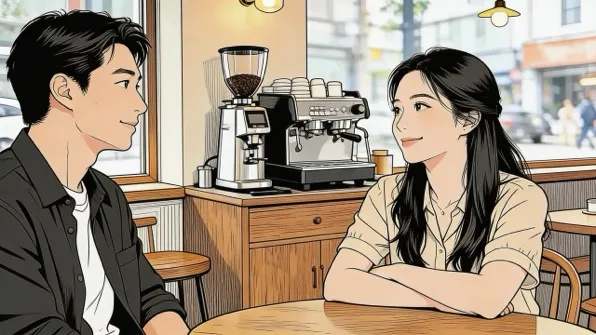
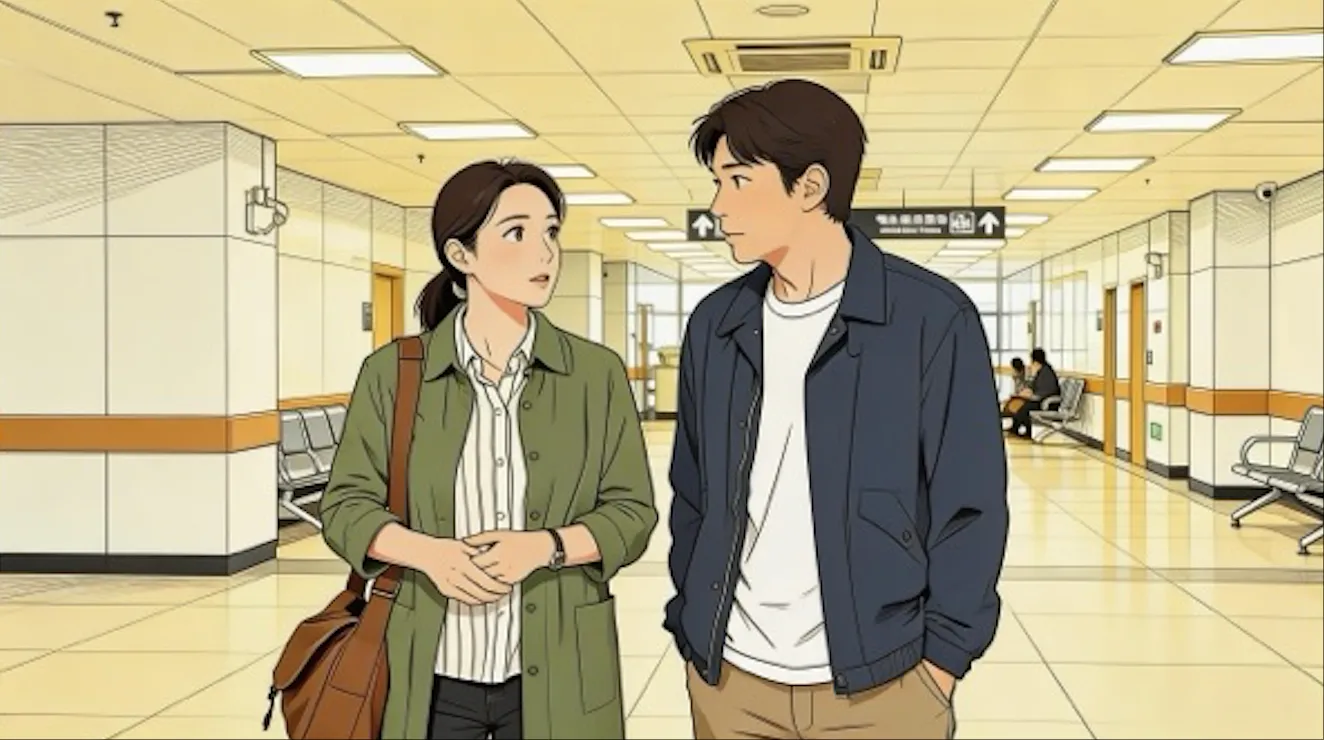
The two people in the image are chatting in an office. The woman speaks first, saying: "You always arrive just on time — do you enjoy that feeling of cutting it close?" The man laughs and responds: "I have my own rhythm." The dialogue is casual and natural, with subtitles appearing at the bottom of the screen matching each line.

2.3 Speech Bubbles

Prompt Formula
[Character] says: "...", speech bubbles appear around the character with the dialogue text.

Campus Running Scene with Bubbles

Output
Reference Input
Image 1
View High-Res Reference
Image 1
Prompt
The two people from Image 1 are wearing sportswear and running on a school track. The girl looks at the boy and says confidently with a smile: "We can definitely do it!" The camera cuts to a close-up of the boy, who hesitates and replies: "Are you sure?" The camera cuts back to a medium close-up of the girl, who says cheerfully: "Yes!" — her tone is bright and resolute. Speech bubbles appear around each speaking character with the corresponding dialogue.

Strawberry Farm Scene with Bubble

Output
Reference Input
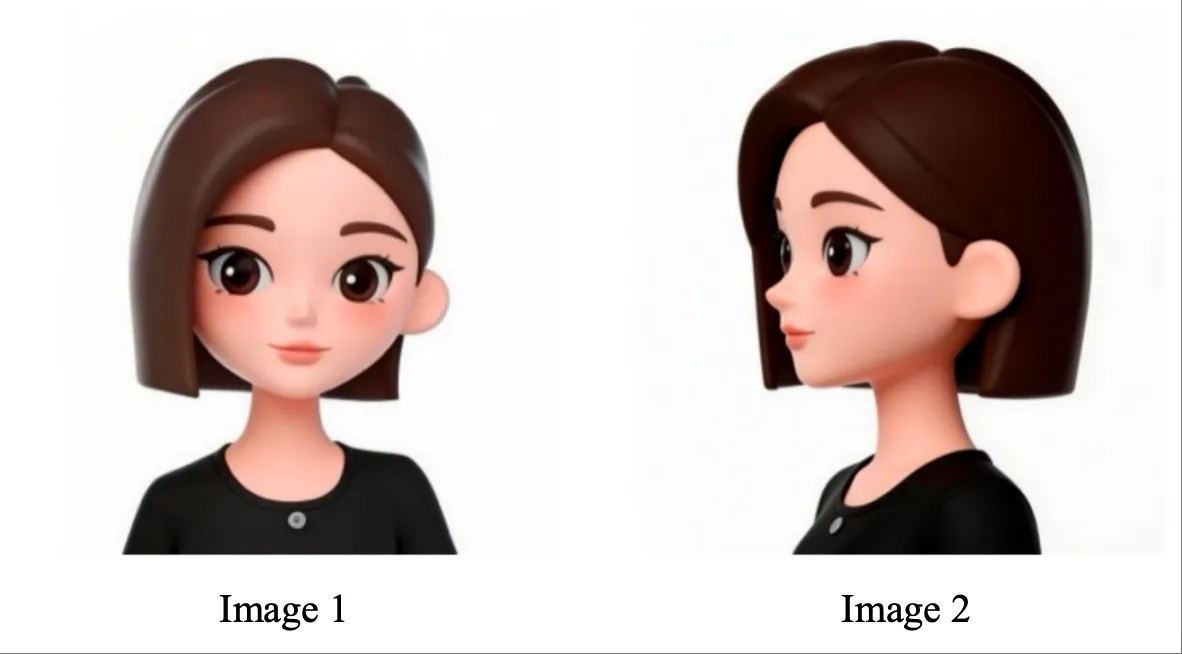
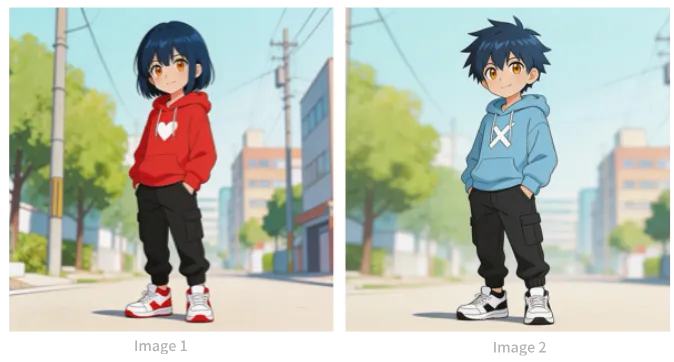
Image 1 & Image 2
View High-Res Reference
Image 1 & Image 2
Prompt
Referencing the girl's appearance from Image 1 and Image 2, the girl is in a strawberry garden, picks a strawberry, takes a bite, and says with a smile: "This is the real deal!" A speech bubble appears around the girl with the dialogue text.

03 Image Reference

3.1 Multi-angle Subject Reference

Simply specify the reference object clearly and the model can respond accordingly. Here are examples for products and characters.

Prompt Formula
Reference / Extract / Combine + [Image N]'s [Subject], generate [Scene Description], maintaining consistent [Subject] features.

3C Digital Product

Output
Reference Input
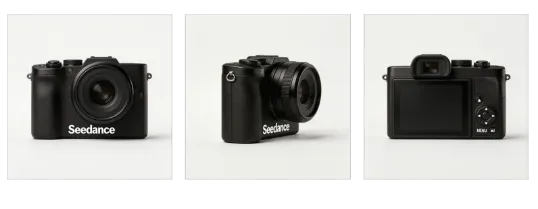
Image 1, 2, 3
View High-Res Reference
Image 1, 2, 3
Prompt
Extract the camera from Image 1, Image 2, and Image 3, replace the background with white. The camera sits on a white table, the lens focuses on the camera in close-up, then slowly rotates around the camera as the main subject, clearly showcasing the front, side, and back.

Household Items

Output
Reference Input
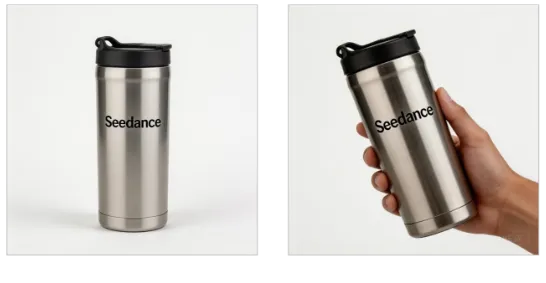
Reference Images
View High-Res Reference
Reference Images
Prompt
The background is a warm-toned home scene. A medium shot shows the thermos bottle from the reference image. The camera smoothly pushes in to a close-up, then a hand naturally enters the frame from off-screen, gently grips the bottle and lifts it. The camera follows as the hand slightly rotates to showcase the product.

Character Reference

Output
Reference Input
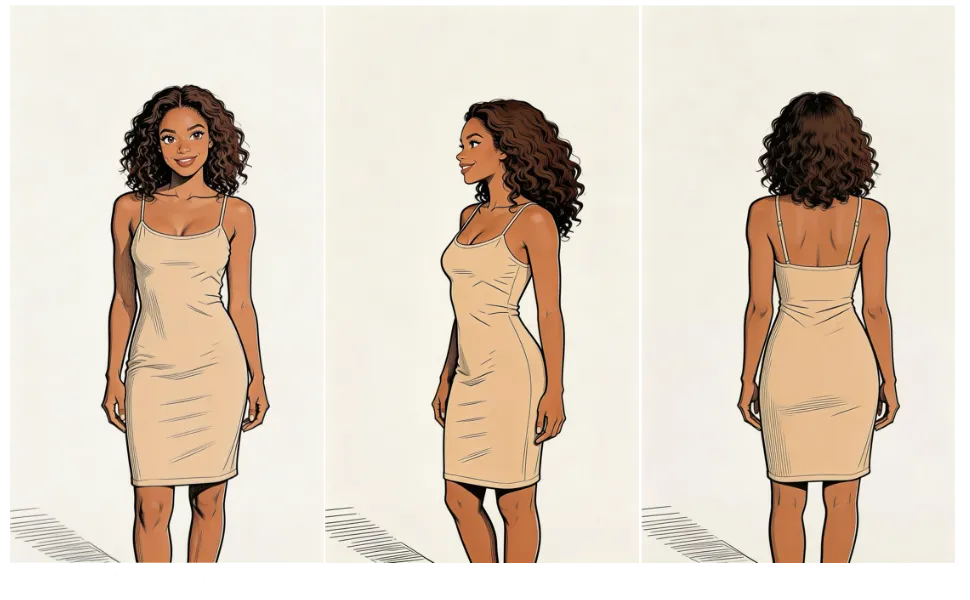
Image 1, 2, 3
View High-Res Reference
Image 1, 2, 3
Prompt
Reference the woman's appearance from Image 1, Image 2, and Image 3, generate a scene of her eating cake at a coffee shop.

3.2 Multi-image Reference

Prompt Formula
Reference / Extract / Combine / Follow / Generate + [Image N]'s [Referenced Element Description], generate [Scene Description], maintaining consistent [Referenced Element] features.

Logo Reference

Output
Reference Input
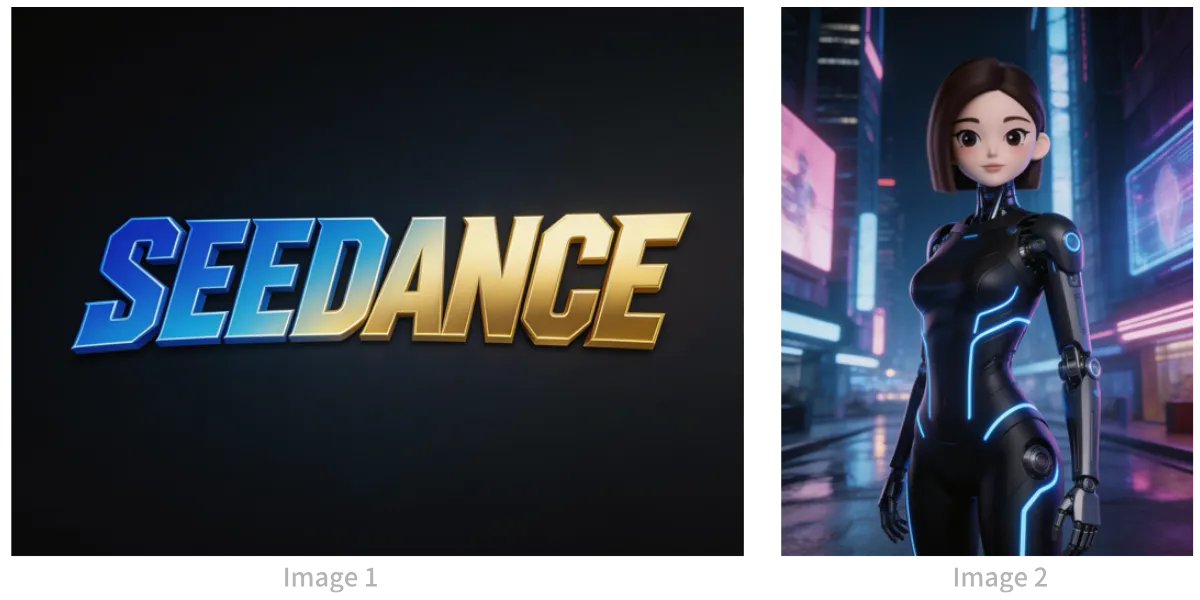
Image 1 (Logo) & Image 2 (Character)
View High-Res Reference
Image 1 (Logo) & Image 2 (Character)
Prompt
The background is a neon-lit futuristic urban sky corridor with vehicles and holographic ads intertwined. Reference the girl from Image 2, first use a medium shot to show the girl releasing silver floating lanterns with holographic projections, then the camera pulls back to reveal floating lanterns filling the sky. The scene gradually blurs, then the Logo from Image 1 appears. Overall style is 3D cyberpunk sci-fi animation.

Multi-subject Reference

Output
Reference Input
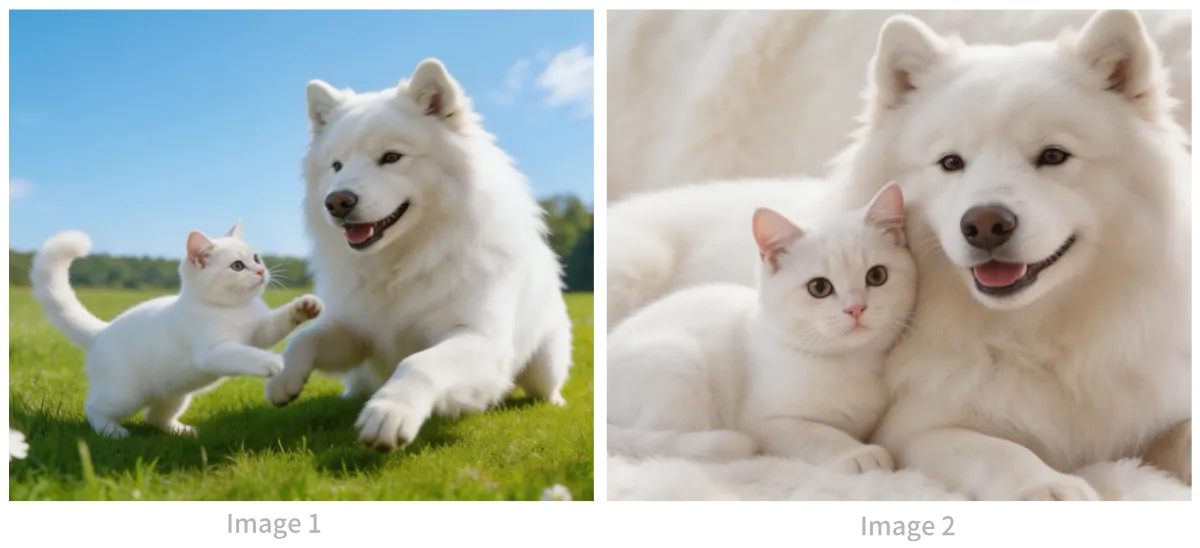
Cat & Dog Reference Images
View High-Res Reference
Cat & Dog Reference Images
Prompt
Reference the cat and dog from the images. In a cozy apartment, the dog is lying down eating dog food. The cat walks over and extends a paw to touch the dog. The dog stops eating when it sees the cat, and the cat snuggles up beside the dog. The scene uses warm color tones.

Multi-element Reference

Output
Reference Input
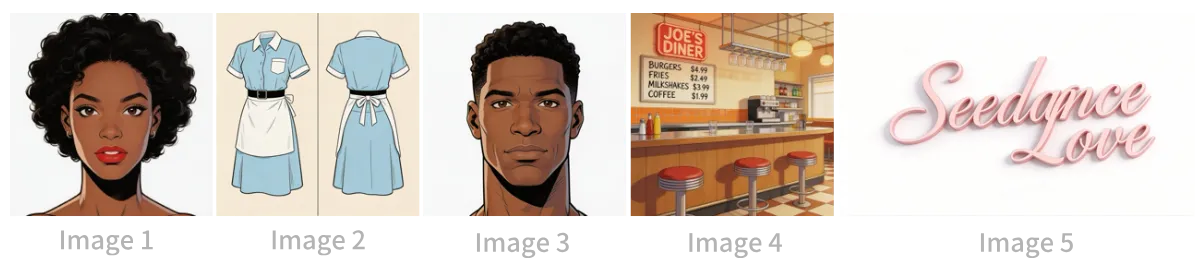
Image 1-5 (Girl, Outfit, Boy, Restaurant, Logo)
View High-Res Reference
Image 1-5 (Girl, Outfit, Boy, Restaurant, Logo)
Prompt
The scene is set inside the restaurant from Image 4, with people coming and going. The girl from Image 1 is wearing the outfit from Image 2, tidying up items on the counter. The boy from Image 3 is a customer who walks up to ask the girl for her contact information. The logo from Image 5 is always displayed in the bottom-right corner of the screen.

Multi-panel Storyboard

Output
Reference Input
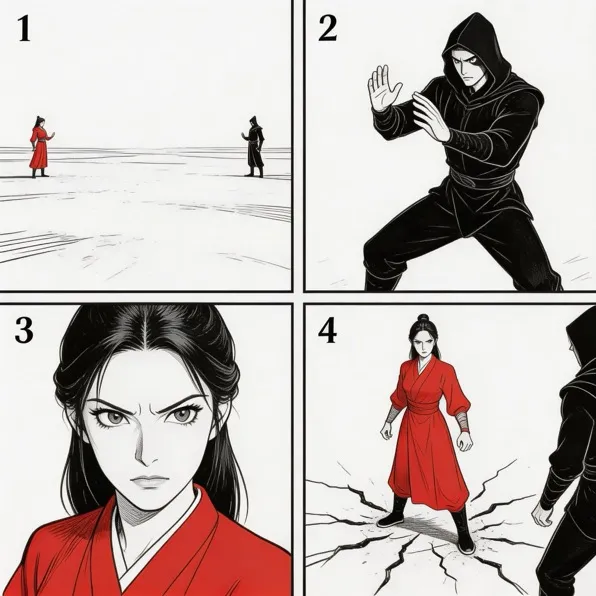
Storyboard Image
View High-Res Reference
Storyboard Image
Prompt
Reference the storyboard in the image and generate an intense fight scene. Each panel's composition should appear in order, followed by an intense battle between the two characters.

Storyboard with Characters

Output
Reference Input
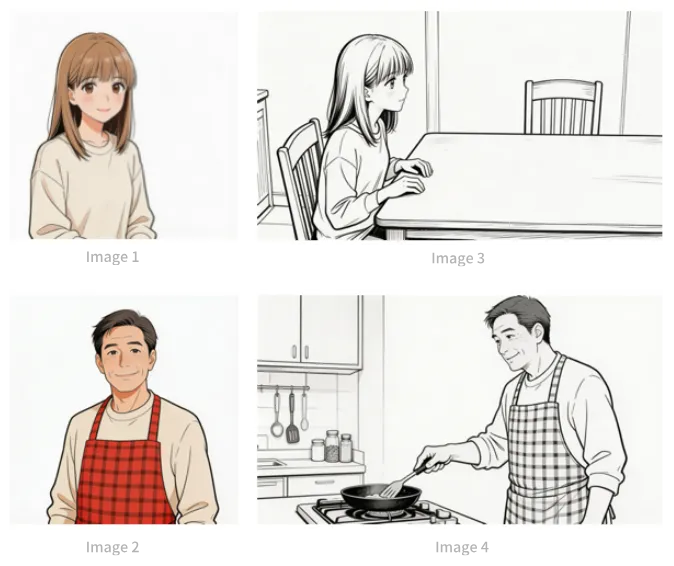
Image 1-4 (Girl, Dad, Storyboard panels)
View High-Res Reference
Image 1-4 (Girl, Dad, Storyboard panels)
Prompt
Follow the storyboard composition from Image 3. A girl is waiting for her dad to finish cooking. She says: "Dad, I'm hungry! Is dinner ready?" The girl's appearance references Image 1. Then the camera pans right to switch to Image 4's scene and composition. The dad's appearance references Image 2. The dad replies: "Almost done, just wait a little!" Then the camera cuts back to a close-up of the daughter looking slightly disappointed, saying: "Still not ready? It smells so good..." Then switch to a close-up of the dad saying: "It's almost done for real. Stop rushing and go wash your hands first!"

04 Video Reference

4.1 Action Reference

Prompt Formula
Reference [Video N]'s [Action Description], generate [Scene Description], maintaining consistent action details.

Film / Action Scene

Output
Reference Input
Video 1 (Action Reference)
Image 1 & Image 2 (Characters)
View High-Res Reference
Image 1 & Image 2 (Characters)
Prompt
Reference the character actions and camera language from Video 1, generate a fight scene between Image 2 and Image 1. Image 2 is the character on the left, Image 1 is the character on the right. With intense background music.

Marketing / Product Ad

Output
Reference Input
Video 1 (Horse Running)
Prompt
Reference the running form of the horse from Video 1, generate a golden horse galloping on a grassland, then freeze-frame its magnificent running pose, transforming into a horse-shaped gold pendant.

4.2 Camera Movement Reference

Prompt Formula
Reference [Video N]'s [Camera Movement Description], generate [Scene Description], maintaining consistent camera movement.

Tech Park Concept Video

Output
Reference Input
Video 1 (Camera Reference)
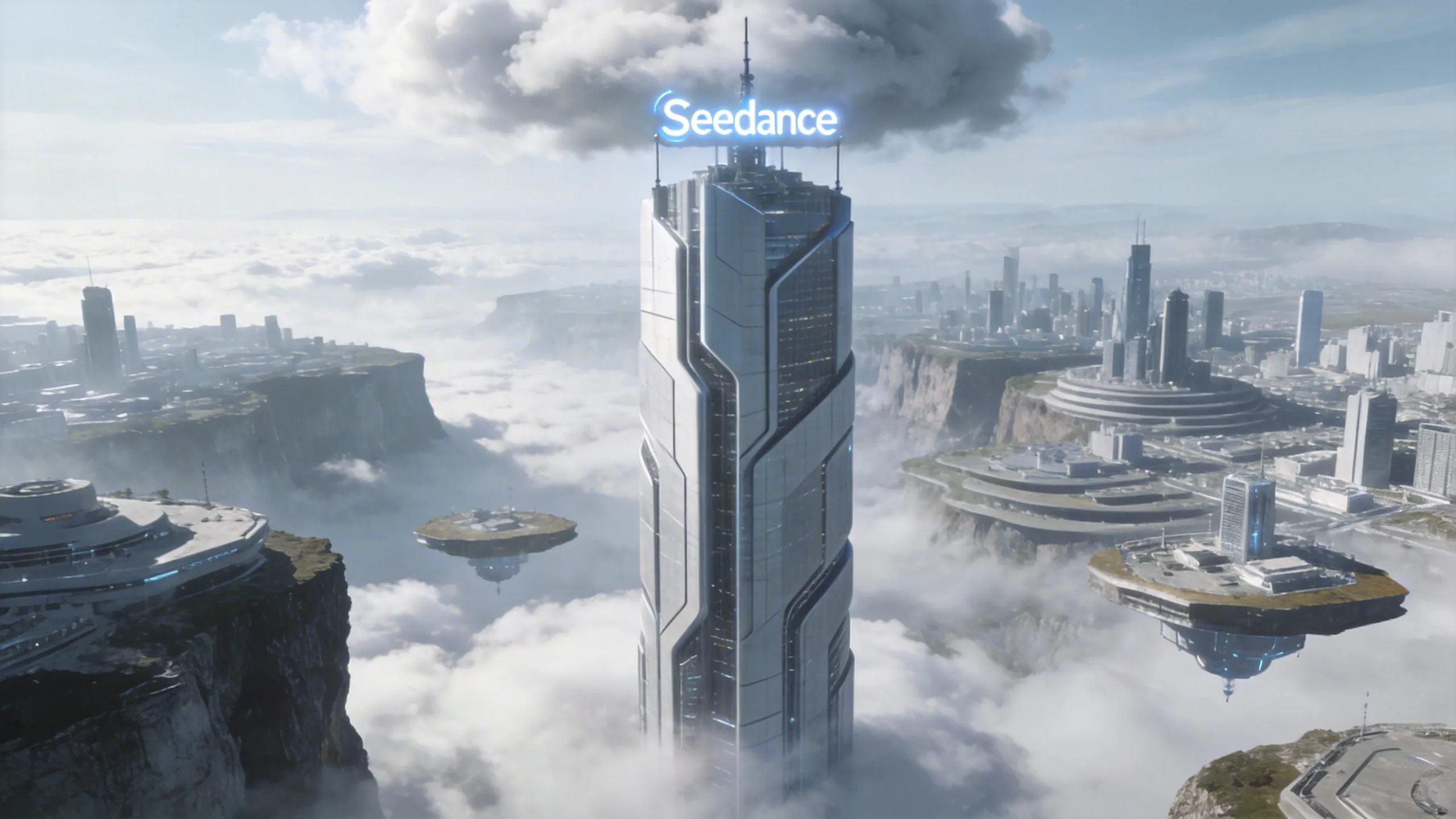
Image 1 (Tech Park)
View High-Res Reference
Image 1 (Tech Park)
Prompt
Reference the camera movement from Video 1 to create a concept video for a tech park. Use the high-rise building from Image 1 as the visual center, with the same first-person diving perspective, highlighting the tech aesthetic of the park in Image 1.

4.3 Effects Reference

Prompt Formula
Reference [Video N]'s [Effects Description], generate [Scene Description], maintaining consistent effects.

Film / Particle Effects

Output
Reference Input
Video 1 (Particle Effect)
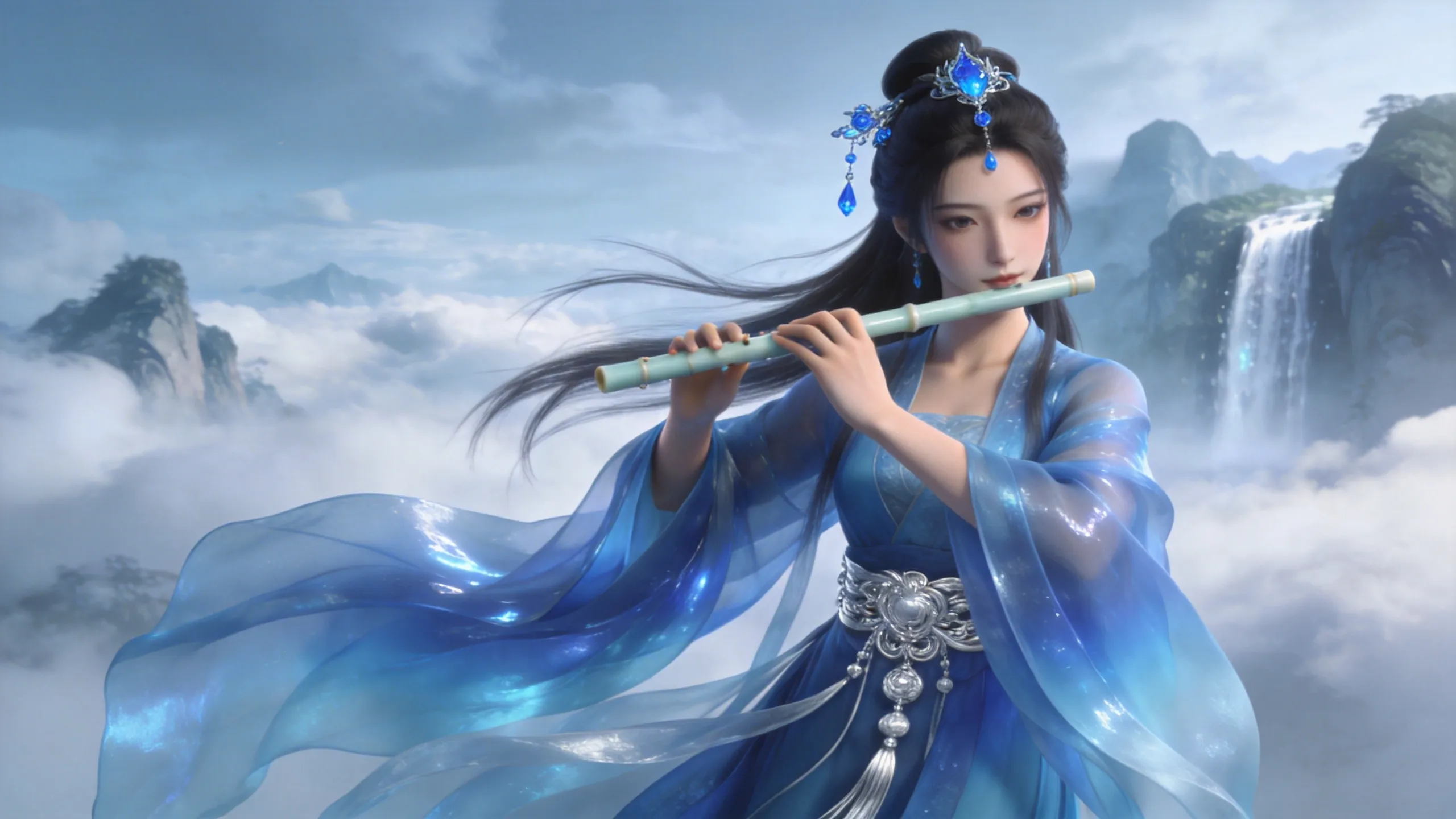
Image 1 (Character)
View High-Res Reference
Image 1 (Character)
Prompt
Reference the golden particle effects from Video 1, have the character from Image 2 play a flute while surrounded by the same particle effects.

Fun / Wings Effect

Output
Reference Input
Video 1 (Wings Effect)
Image 1 (Girl)
View High-Res Reference
Image 1 (Girl)
Prompt
Reference the effects from Video 1 to make the girl from Image 1 grow the same wings, with the wing generation trajectory matching exactly.

05 Video Editing

5.1 Add / Remove / Modify Elements

Prompt Formula
Add Element: At [Time Position] + [Spatial Position] of [Video N], add [Desired Element Description]. Remove Element: Remove [Element] from [Video N], keep everything else unchanged. Modify Element: Replace [Original Element Description] in [Video N] with [Desired Element Description].

Add Elements

Output
Reference Input
Video 1 (Original)
Prompt
Add fried chicken, pizza, and other snacks on the counter in Video 1.

Remove Elements

Output
Reference Input
Video 1 (Original)
Prompt
Clear the other parts and tools from the desktop in Video 1, keep the desktop clean and tidy — only the items they're holding in their hands should remain.

Modify Elements

Output
Reference Input
Video 1 (Original)
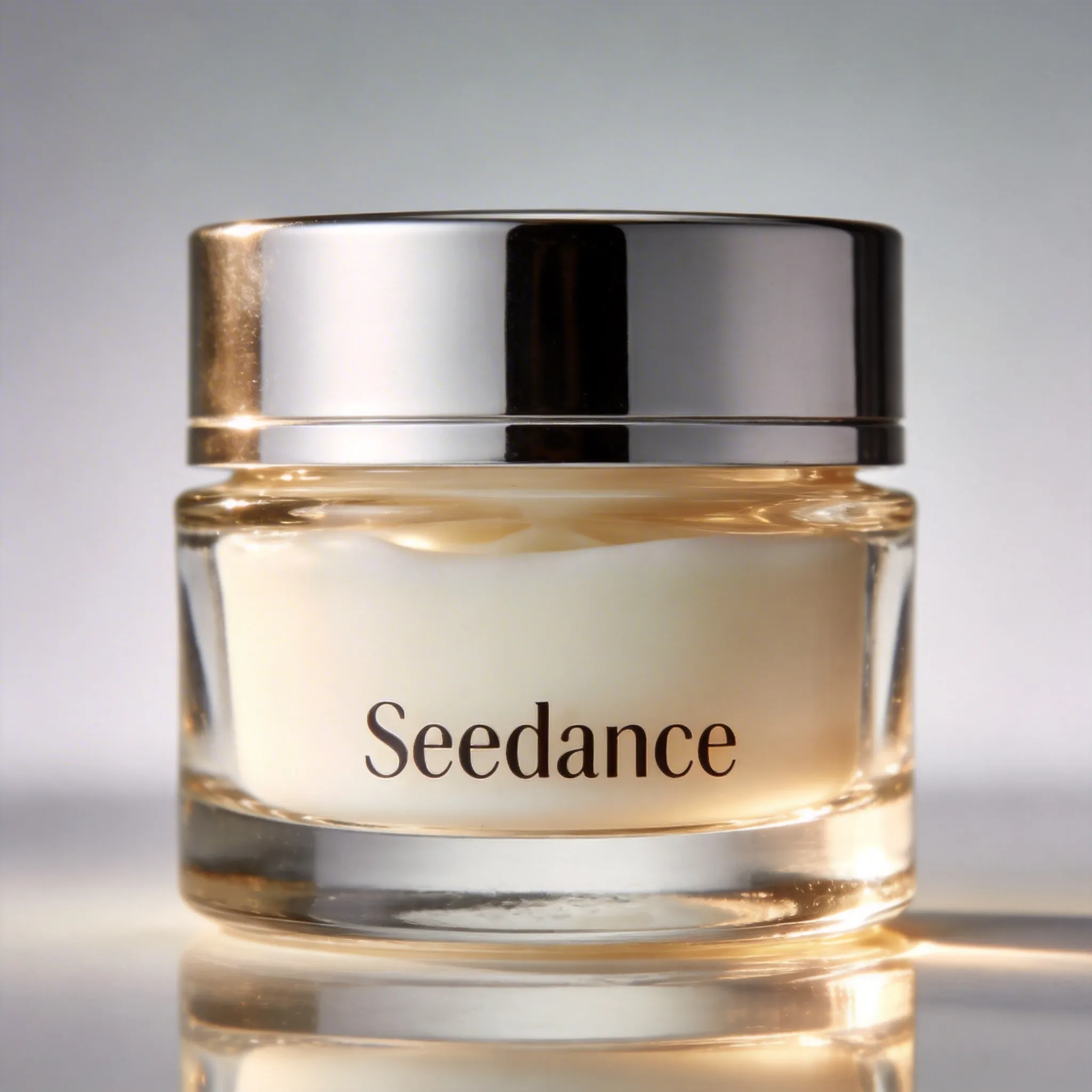
Image 1 (Face Cream)
View High-Res Reference
Image 1 (Face Cream)
Prompt
Replace the perfume in Video 1 with the face cream from Image 1, keeping the motion and camera movement unchanged.

5.2 Video Extension

The model automatically captures the connecting portion for seamless compositing. Original video segments will not be duplicated.

Prompt Formula
Extend [Video N] forward/backward + [Description of extended content]. Or: Generate content before/after [Video N] + [Description].

Extend Backward

Output
Reference Input
Video 1 (Original)
Prompt
Generate the content after Video 1. Two late-arriving men run toward them, all five people finally meet and chat happily.

Extend Forward

Output
Reference Input
Video 1 (Original)
Prompt
Extend Video 1 forward with an over-the-shoulder shot of the man in white. The man in white says: "It's not that bad. You're just stressed. Everyone goes through this, you just need to keep going."

5.3 Track Completion

Seedance 2.5 supports up to 3 video inputs with a total duration not exceeding 15 seconds. The system automatically captures the connecting portions of the first and last videos, retaining only the necessary segments for compositing.

Prompt Formula
[Video 1] + [Transition Description] + connect to [Video 2] + [Transition Description] + connect to [Video 3]

Leaf Transition Between Scenes

Output
Reference Input
Video 1
Video 2
Prompt
Video 1, at the moment the leaf touches the ground, golden particle effects burst out, a gust of wind blows, then connect to Video 2.

06 Cinematography & Audio Sync Pro Guide

6.1 Cinematic Camera Vocabulary

Incorporate standard cinematography terminology into your prompts to give Seedance 2.5 precise spatial trajectory guidance.

Dolly In / Out

Physically moves the camera closer or further from the subject, altering perspective and spatial tension.

Pan Left / Right

Rotates the camera horizontally on a fixed axis to reveal broader surrounding elements.

Tilt Up / Down

Tilts the camera vertically up or down, creating towering grandeur or intimate reveals.

Tracking / Follow Shot

The camera travels alongside or behind the moving subject, maintaining steady composition.

Crane / Jib Shot

Sweeps the camera smoothly high above the scene or swoops down towards the ground.

Dutch Angle

Tilts the horizon line diagonally to induce psychological unease or surreal atmosphere.

6.2 Best Practices & Avoiding Common Pitfalls

Logical Temporal Sequencing

Use clear chronological markers like "First..., then..., slowly transitions into..." rather than cramming multiple simultaneous actions.

Native Audio Generation Keywords

Specify speech tones ("a deep soothing baritone voiceover says: '...'") and ambient acoustics ("crisp crunching leaves, gentle wind chimes in the distance").

Preventing Reference Confusion

Label each reference strictly as Image 1, Image 2, Video 1. Never use vague terms like "the previous picture" or "that video".

07 Production Workflow & Timeline Staging

7.1 "Give Every Reference a Role" — Multi-asset Assignment

Seedance 2.5 can accept multiple reference files simultaneously. The golden rule from LumaLabs & Mitte is: never feed references passively; explicitly define each asset's distinct job.

Identity Anchor (Image 1 & 2)

Assign 1-2 clean portrait shots strictly for facial identity, bone structure, and hairstyle consistency. State: "Reference character face strictly from Image 1".

Motion & Dynamics Driver (Video 1)

Assign an external video solely for physical kinetic energy or pacing. State: "Adopt the physical motion tempo from Video 1 without inheriting its background".

Style & Lighting Mood (Image 3)

Assign another still for volumetric lighting, film grain, or color palette. State: "Grade the scene using the golden hour lighting and color contrast of Image 3".

Parametric Cleanliness (UI vs Prompt)

Keep technical tags (e.g., 4k, 1080p, 16:9, 10s, 60fps) entirely out of the text prompt. Configure them via Seedance Studio toolbars to prevent semantic clutter.

7.2 30-Second Single-Take Timeline Staging

Seedance 2.5 supports up to 30s continuous generation. To prevent motion decay or narrative drift, structure prompts into chronological chapters: [0-8s], [8-18s], and [18-30s].

Prompt Formula
[0-8s]: [Establishing Action & Setting] -> [8-18s]: [Development & Camera Evolution] -> [18-30s]: [Climax, Dialogue & Resolution]
[0-8s] The Hook & Establishing

Establish the initial character position, atmospheric lighting, and initiate the primary motion trajectory.

[8-18s] Narrative Turning & Camera Pan

Shift the camera perspective (e.g., transition from wide tracking to tight medium close-up) while introducing the secondary interaction.

[18-30s] Climax, Speech & Final Beat

Deliver the climax or synchronized dialogue, concluding with a dramatic camera crane up or poetic slow-motion resolve.

08 High-Converting Commercial & Narrative Templates

8.1 Commercial Product Reveal (PixVerse & OpenArt Standard)

Prompt Formula
Reference [Product Image 1], studio lighting, macro lens tracking [Feature], dynamic liquid/light interaction, premium 4K aesthetic.
Product 360 Spin & Macro Reveal

Prompt Template: "Reference the product in {{Image 1}}, placed on a sleek black reflective surface. The camera smoothly orbits 360 degrees around the bottle as soft cyan and magenta rim lights glide across its metallic contours. Ultra-slow motion, pristine droplets condensing on the glass surface, studio quality commercial."

8.2 Micro-Drama Over-the-Shoulder Dialogue (AIPostHub & Morphic)

Prompt Formula
Reference [Character A from Image 1, Character B from Image 2], over-the-shoulder conversation shot, alternating dialogue with synchronized lip-sync.
Cinematic Two-Shot Exchange

Prompt Template: "Over-the-shoulder shot looking from Character A (from {{Image 1}}) towards Character B (from {{Image 2}}) inside a dim detective office. Character B speaks intensely: 'You shouldn't have opened that file.' Camera slowly dollies in on Character B's eyes showing hesitation, natural lip-sync, dramatic film noir shadows, synchronized subtitles at the bottom."

Frequently Asked Questions (FAQ)

Seedance 2.5 natively supports up to 30-second continuous single-shot generation, integrated multimodal referencing (images, audio, video simultaneously), and native audio-visual synchronization with zero lip-sync latency.
Start Creating with Seedance 2.5

Ready to bring your cinematic visions to life?

Take these battle-tested prompts directly into Seedance Studio. Experience multimodal controls, ultra-realistic physics, and native audio synchronization now.